Issue: Stylus tap on text fields does not bring up the on-screen keyboard.
Cause: Possible settings conflict with on-screen keyboard and stylus settings.
Solution
Access Keyboard Settings:
Open the Settings app on your Samsung Galaxy.
Navigate to “S-Pen to Text”:
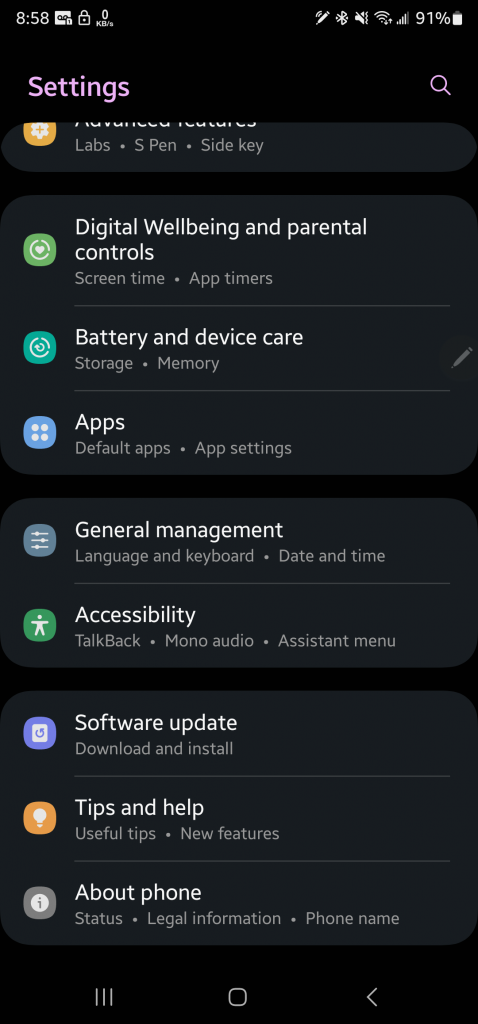
Go to General Management or Advanced Features.
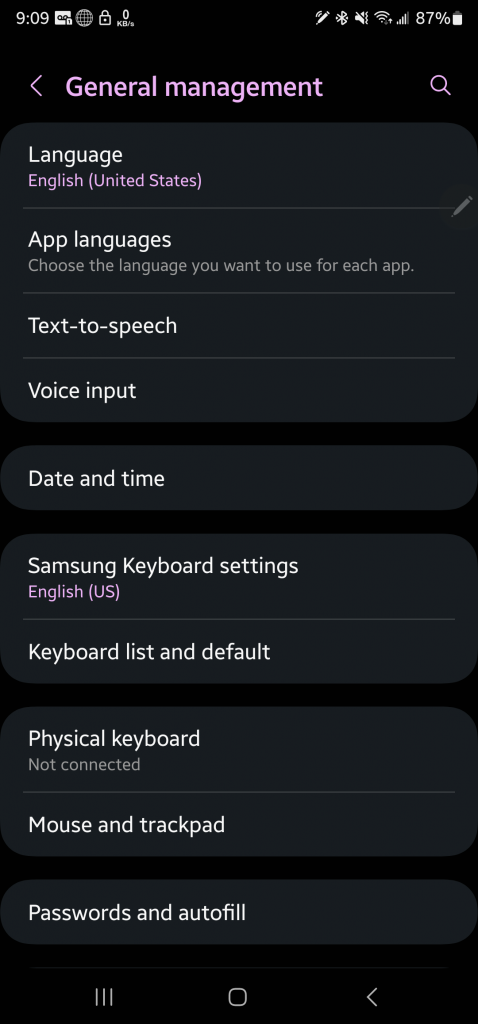
open the Samsung Keyboard settings.
Find the option labeled “S-Pen to Text”.
Toggle “S-Pen to Text”:
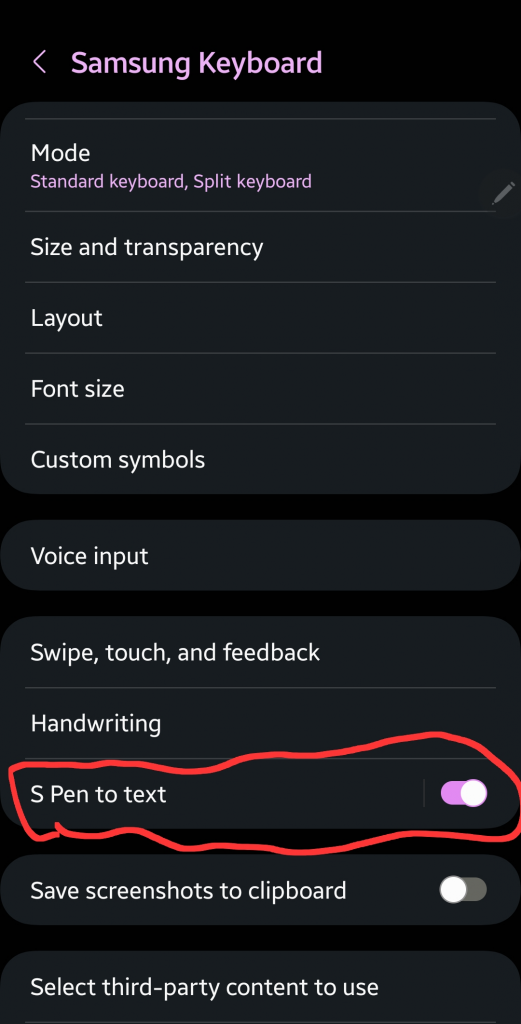
Flip the switch for “S-Pen to Text” to the opposite of its current setting.
Test the Fix:
Press the Home button to return to the main screen.
Navigate to any search field or text box.
Tap the field with your stylus to see if the on-screen keyboard appears.
This should resolve the issue with the on-screen keyboard not appearing when using the stylus.
Leave a Reply